This article describes how to install MotorXP-AFM on a Windows computer: what the online installer downloads, which third-party components it deploys, and what to do if any of these steps fail.
Before you begin #
Before installing the application, please check the system requirements for MotorXP-AFM 2.0.
Warning. MotorXP-AFM runs on Windows only. Linux-based operating systems and macOS are not supported.
Two types of installer are available:
- Online installer — the recommended option. It downloads the application components and third-party dependencies from the official repository during installation and provides support for further updates.
- Offline installer — available on request. Use it if the target machine has no internet access. Note that the offline installer does not support automatic updates.
To obtain an installer, either purchase a license or request a trial version:
Buy a license Request a trial version
Tip. We recommend installing MATLAB Runtime R2020b (9.9) on your computer before installing MotorXP-AFM Standalone/Matlab. The MotorXP-AFM installer will install MATLAB Runtime automatically if it is missing, but downloading the archive may take a considerable amount of time. Installing it in advance noticeably speeds up the whole process.
Download MATLAB Runtime R2020b (9.9)
Installation steps #
-
Run the installer. Launch MotorXP-AFM2026OnlineInstaller.exe.
A stable internet connection is required during installation: the installer downloads both the application components and the third-party dependencies from the official MotorXP-AFM repository (https://motorxp.com/MotorXPAFMRepo). By default the system proxy settings are used. To specify a different proxy or to disable proxy usage entirely, click Settings, open the Network tab and select either Manual proxy configuration or No Proxy (see Figure 1).
click on image to enlarge
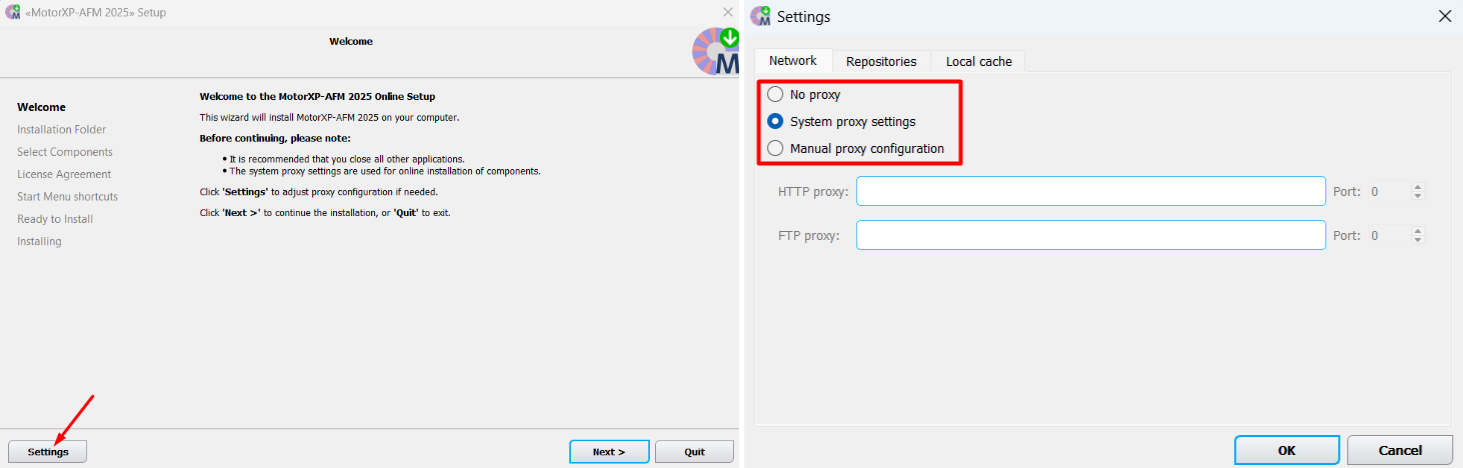
Figure 1. Installer interface view with proxy settings. - Choose the version. Select the MotorXP-AFM edition to install: Standalone or MATLAB.
- Choose the folders. Specify the installation folder for the application and the folder for storing user data. By default a MotorXP folder is created on the system drive (e.g. drive C:). We recommend keeping the default paths unchanged.
- Check the required disk space. On the Ready to Install page, note the amount of disk space required during installation (temporary) and the final size of the installed application. This calculation does not include the disk space occupied by third-party components such as MATLAB Compiler Runtime — only the size of their installers is accounted for.
-
Install the third-party software (only the components that are not already present on the system):
- MATLAB Compiler Runtime R2020b (9.9);
- MinGW-w64 GCC 8.1;
- Microsoft Visual C++ 2015–2022 Redistributable (x64), version 14.44.35211.
MATLAB Compiler Runtime and the Microsoft Visual C++ Redistributable are installed automatically in passive mode. MinGW-w64 GCC 8.1 is deployed by extracting its archive to the system drive (e.g. C:\MinGW\8.1.0).
- Finish. On the final page you can open the application folder, open the materials and user data folder, launch MotorXP-AFM 2026 (or motorxp.m), or open the User Manual (see Figure 4).
Note. While the repositories are being downloaded from the remote server, errors may occur due to an unstable connection. If dialog boxes with messages such as Failed to fetch archive appear, click Retry several times.
If the third-party components fail to install #
Warning. If error messages occur while the third-party components are being installed, you can install them manually using the links below.
MATLAB Compiler Runtime R2020b (9.9) Microsoft Visual C++ 2015–2022 Redistributable (x64) MinGW-w64 GCC 8.1
The MinGW-w64 archive must be extracted to the system drive (e.g. C:\MinGW\8.1.0).
If errors occurred during the MinGW installation, you also need to create a user environment variable MW_MINGW64_LOC and set its value to the MinGW installation path (e.g. C:\MinGW\8.1.0). After that, run the mex -setup command in the MATLAB Command Window — MATLAB will then recognize the MinGW-w64 compiler as available (see Figure 2). If no errors occurred during installation, the installer creates the MW_MINGW64_LOC variable automatically and no manual configuration is required.
click on image to enlarge
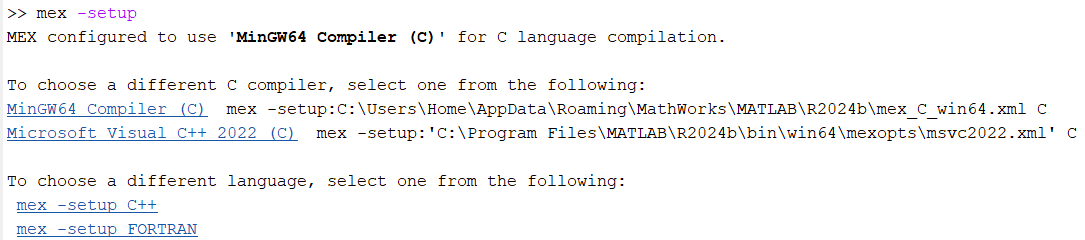
Figure 2. Example output of the mex -setup command.
After the installation #
Three shortcuts for working with MotorXP-AFM are created on the desktop: MXP-AFM 2026 Standalone (or Matlab), MXP-AFM 2026 DS Standalone (or Matlab) and Update MXP-AFM 2026 Standalone (or Matlab). A folder for quick access to the executable files is also created in the Windows Start menu (Figure 3).
click on image to enlarge

Figure 3. Installer interface view after successful installation.
Tip. Once the installation is complete you may free up disk space: delete the temporary installation files located in C:\Users\[username]\AppData\Local\Temp (for example, the MatlabRuntime folder) and clear the cache from the Maintenance Tool interface (Settings → Local cache → Clear cache).
click on image to enlarge
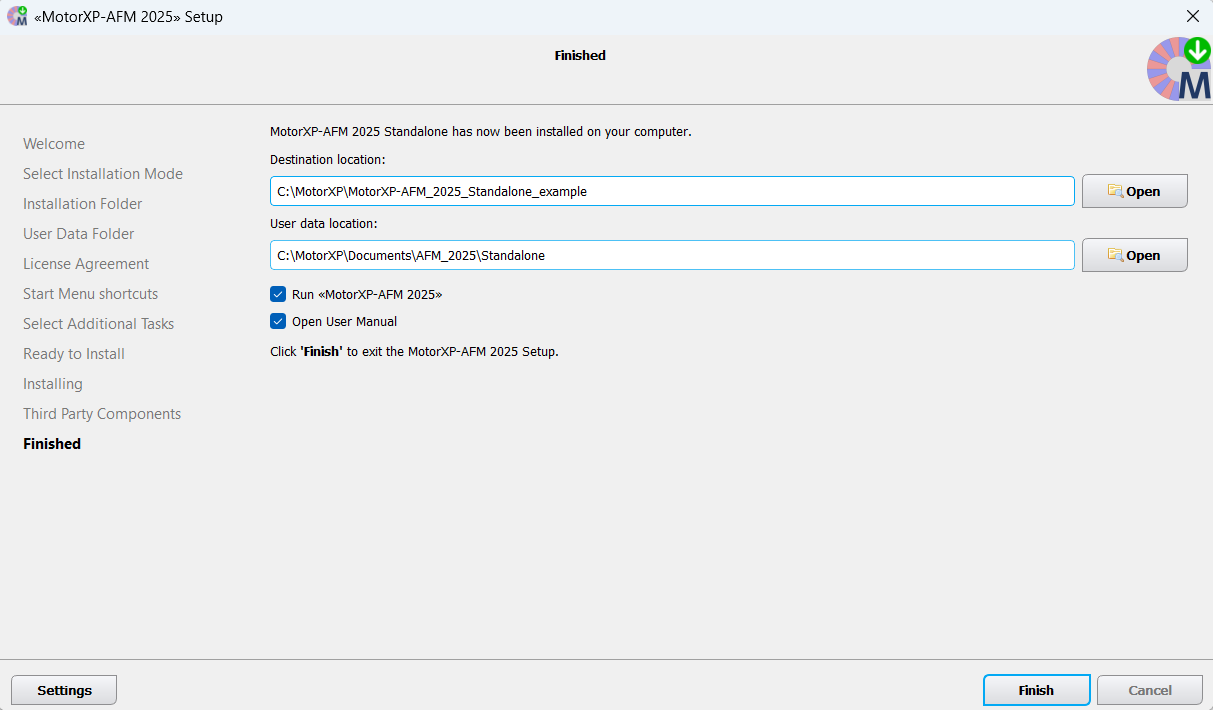
Figure 4. Installer interface view after successful installation.


