This article describes how to activate MotorXP-AFM by obtaining a license from a license server running on a local or corporate network. It is assumed that the license server for MotorXP-AFM clients is already up and running.
Note. Instructions on how to install and configure the license server itself are given in a separate manual.
Download the License Server manual (PDF)
Obtaining a license from the license server #
-
Open the License Manager.
Figure 1. Opening the License Manager. -
Select the server license mode. In the License Manager window, select the Server license option and click the Configure server license button.
click on image to enlarge
Figure 2. MotorXP-AFM License Manager user interface. -
Configure the connection to the license server. In the License Server Settings dialog, enter the IP address or the domain name of the license server and specify the port number. Then test the connection by clicking the Check Connect button. If the connection is established successfully, click OK.
click on image to enlarge
Figure 3. License Server Settings dialog. - Close the License Manager.
Result #
If the connection to the license server has been established successfully, the server is active and it is not overloaded with client connections, the licensing status in the MotorXP-AFM window changes from FREE Edition to Pro (Figure 4).
click on image to enlarge
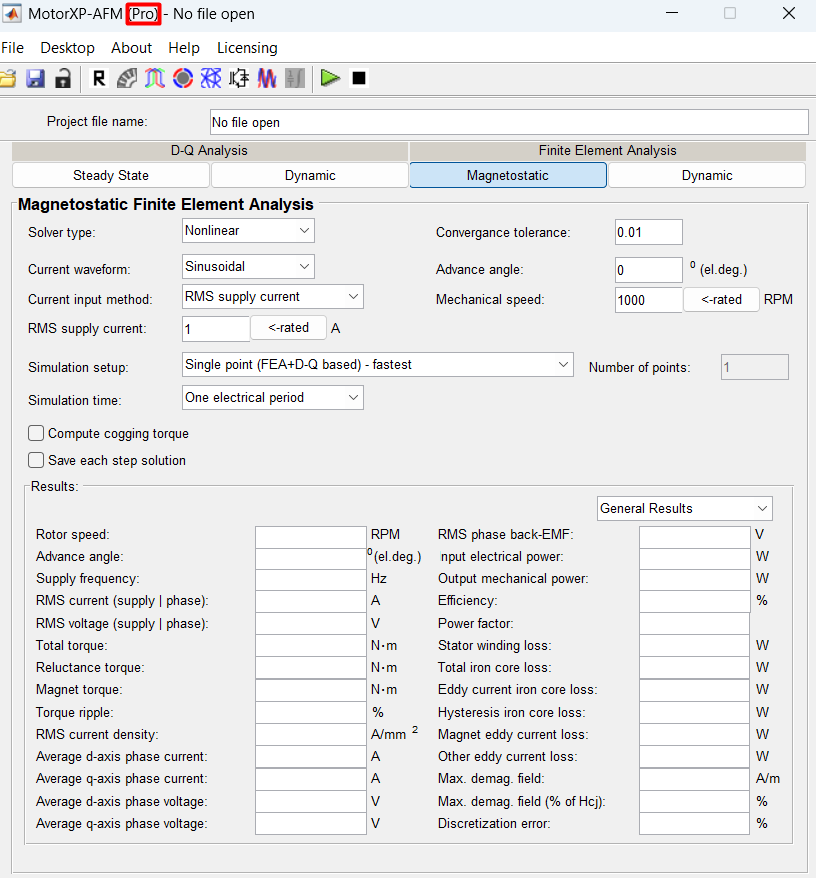
Figure 4. The licensing status has changed to Pro.
Warning. If the connection cannot be established, check that the IP address (or domain name) and the port of the license server are specified correctly, that the server is running, and that the connection is not blocked by a firewall on the client machine or on the network.


