
Introduction #
Starting from MotorXP-AFM 2.0, you can report a problem directly from the application. The Help menu of the MotorXP-AFM Design Studio 2.0 contains the Report a Problem action, which opens a dialog where you describe the issue, attach the relevant files and provide a contact e-mail address.
Once the report has been submitted, an archive with the attached files and the diagnostic information is stored on our server, an incident is created automatically in our issue tracker, and you receive a confirmation e-mail containing the reference number of your request.
Steps #
- Open MotorXP-AFM Design Studio (Standalone or MATLAB version).
- Load the project that reproduces the problem. Open the corresponding .mxa file so that it can be attached to the report. If the problem is not related to a particular project, this step can be skipped.
-
Open the report dialog. In the menu bar, click Help and select Report a Problem.
click on image to enlarge
Figure 1. Opening the Report a Problem dialog from the Help menu. -
Fill in the report. In the dialog:
- give a short description of the problem — what you did, what you expected and what actually happened;
- attach the files: screenshots, logs and any other files that help to reproduce the issue. The files of the currently opened projects are included in the report by default;
- specify the e-mail address we should use to contact you.
click on image to enlarge
Figure 2. Filling in the Report a Problem dialog.Note. The report is sent over the internet. If your computer accesses the network through a proxy server, configure it in the proxy settings of the dialog before sending the report.
-
Send the report. Once the request has been created successfully, you receive a confirmation e-mail with the reference number of your request (Figure 3). Our technical support team will contact you if any further information is needed.
click on image to enlarge
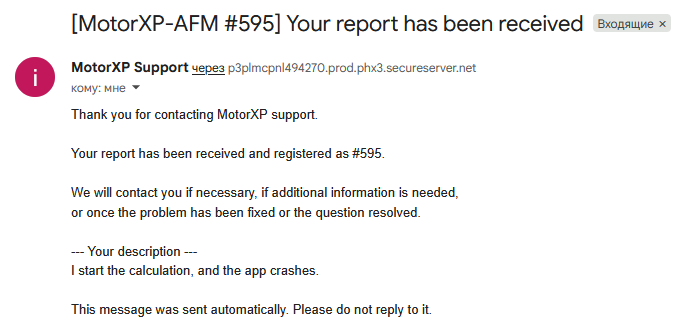
Figure 3. Confirmation e-mail with the reference number of the request.
Tip. The more precisely the problem is described, the faster it can be reproduced and fixed. Whenever possible, attach the project file in which the problem occurs and a screenshot of the error message.


